BSS Combo Products
Created on: Nov 24, 2026
PRE-REQUISITES
-
The plugin requires you to install the BSS Core plugin first.
INSTALLATION
-
Go to the Order Details Page and Download plugin package
-
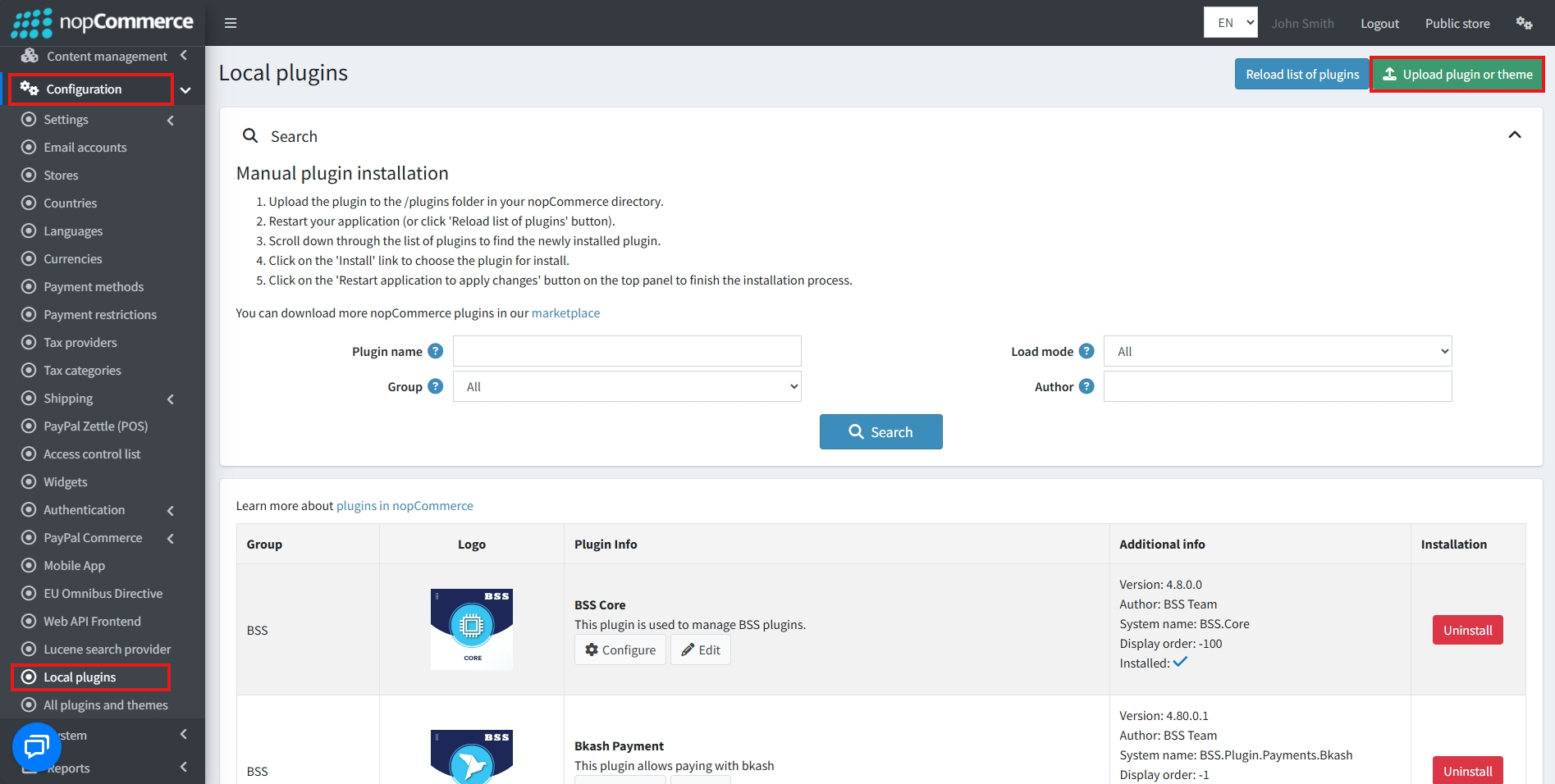
Go to Administration → Configuration → Local plugins
-
Within the bundle, you get all the required files, including BSS.Core
-
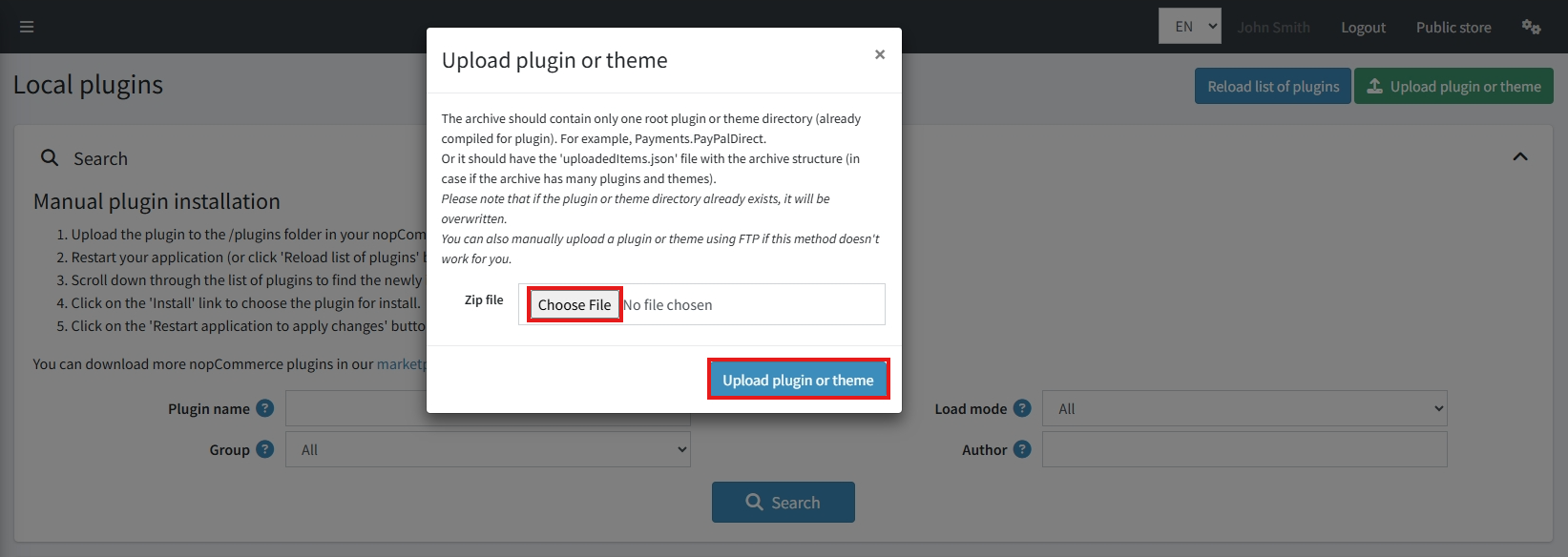
Upload the zip files using the ‘Upload plugin or theme’ button
-
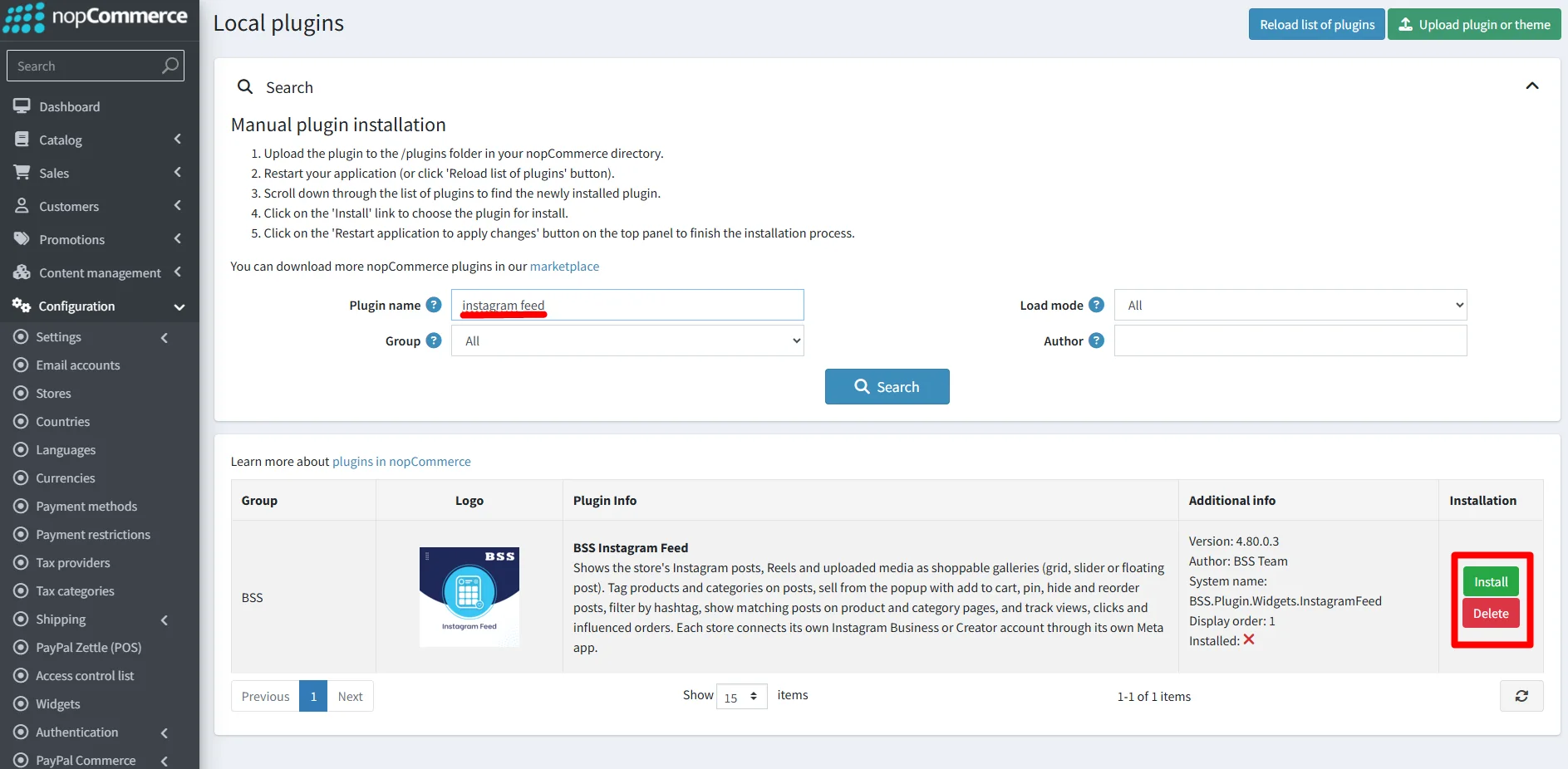
After uploading, install the ‘BSS Core’ Plugin first.
-
Then scroll down or write the name of the plugin in the search bar to find and install ‘BSS Combo Products’
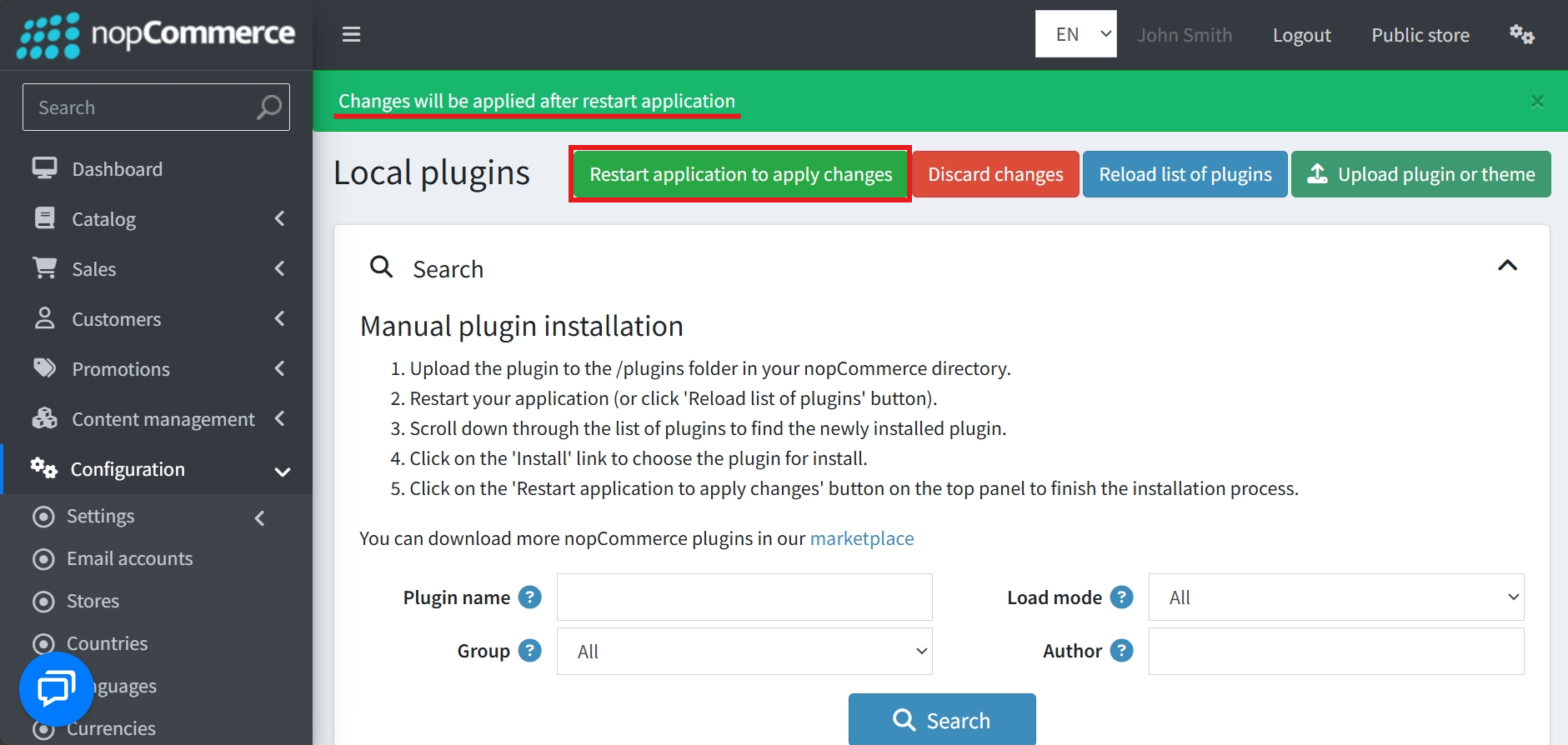
- To make the plugins functional, restart the application
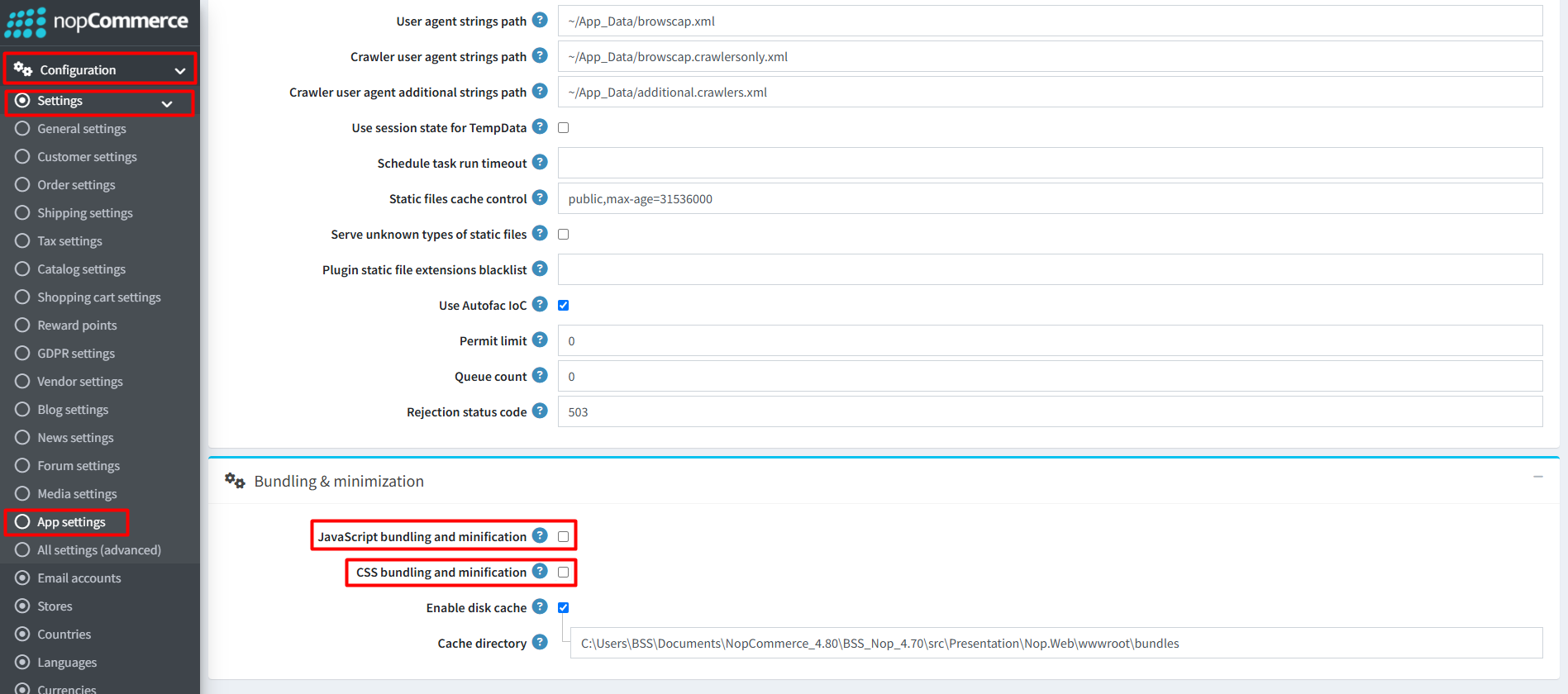
Recommendation: Go to > App Settings. If you find JavaScript bundling and minification, CSS bundling and minification are checked, then uncheck these two options and disable them.
CONFIGURE
-
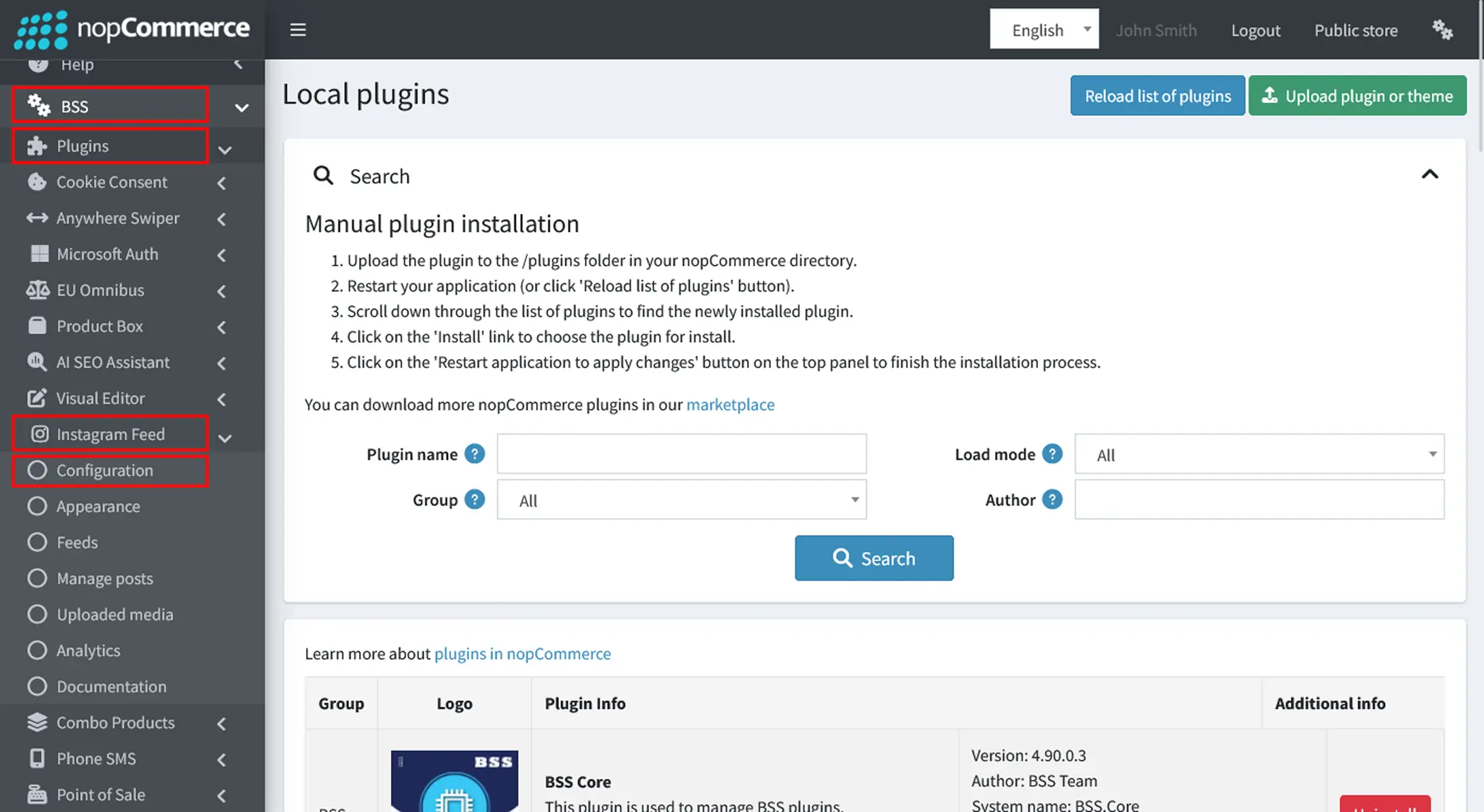
Go to Administration → BSS → Plugins → Combo Products → Configuration
-
Enter the License string and save it. Then clear cache.

-
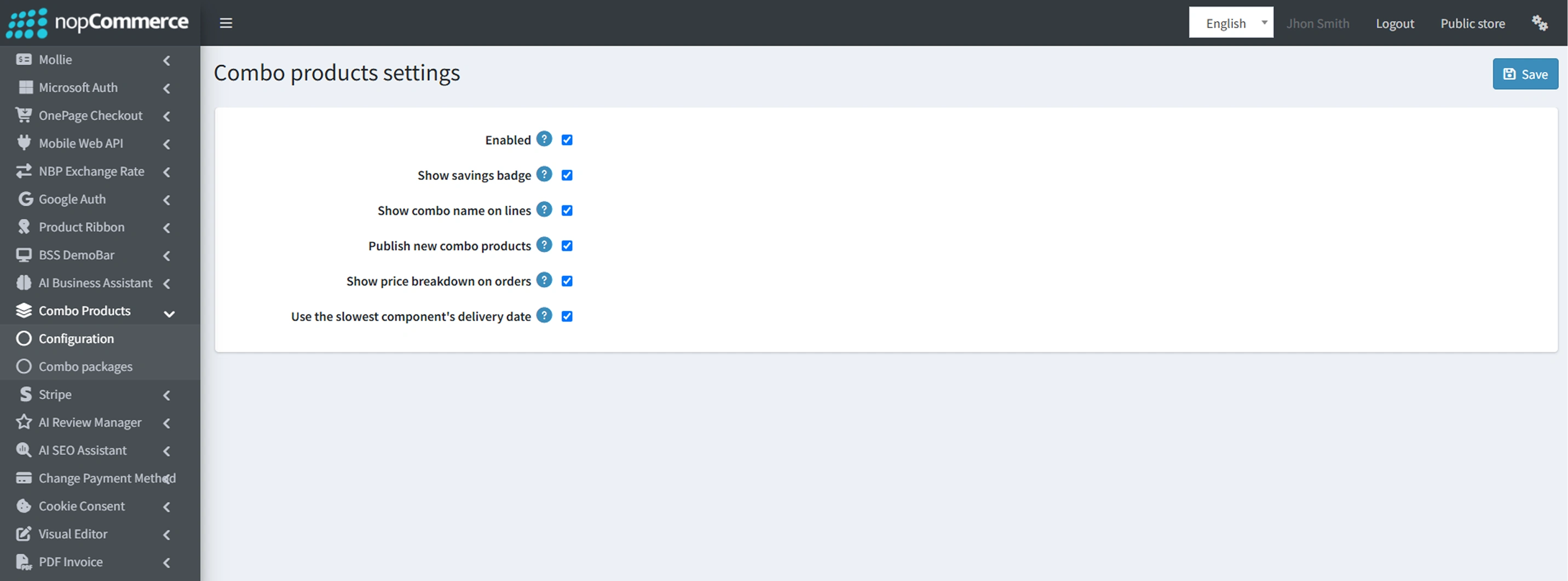
Then again go to BSS → Plugins → Combo Products → Configuration to set up the plugin.
-
Enabled: Turns the combo feature on or off across your store. Check this box to show combo packages on the storefront and apply bundle discounts in the cart.
-
Show savings badge: Displays a "Combo · Save X%" badge on combo product cards so customers can quickly see how much they save.
-
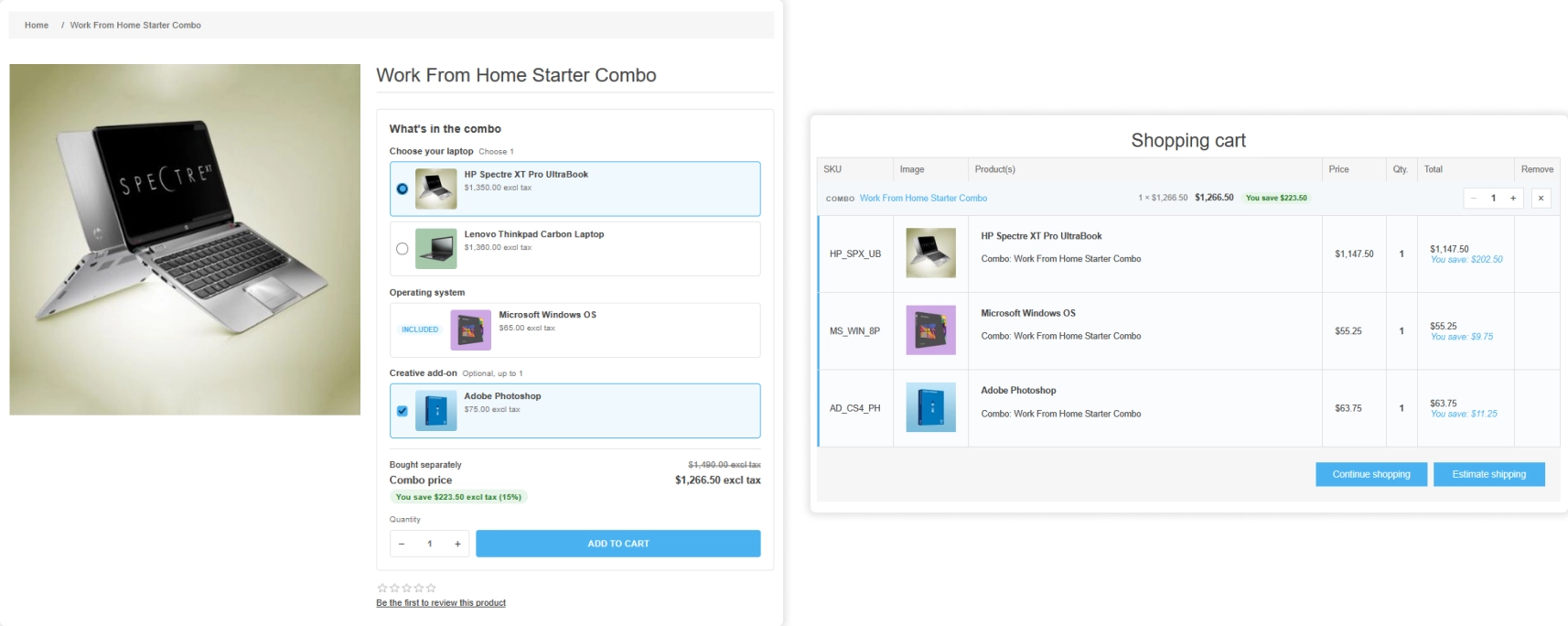
Show combo name on lines: Displays "Combo: [Combo Name]" beneath each bundled item in the cart, order details, invoices, and emails so both you and your customers know which bundle the item belongs to.
-
Publish new combo products: Automatically publishes a newly created combo in your store catalog right away. Leave it unchecked if you want to upload images and edit descriptions before making it live.
-
Show price breakdown on orders: Displays the original price and combo savings under each combo item on new orders, invoices, and emails so customers can clearly see how the bundle discount was applied.
-
Use the slowest component's delivery date: Automatically sets the combo's delivery time and out-of-stock availability based on the slowest required item in the bundle. If no component has a delivery date set, the combo keeps its own.
CREATE A NEW COMBO PRODUCTS
Create a new combo product using either of the following menu paths:
-
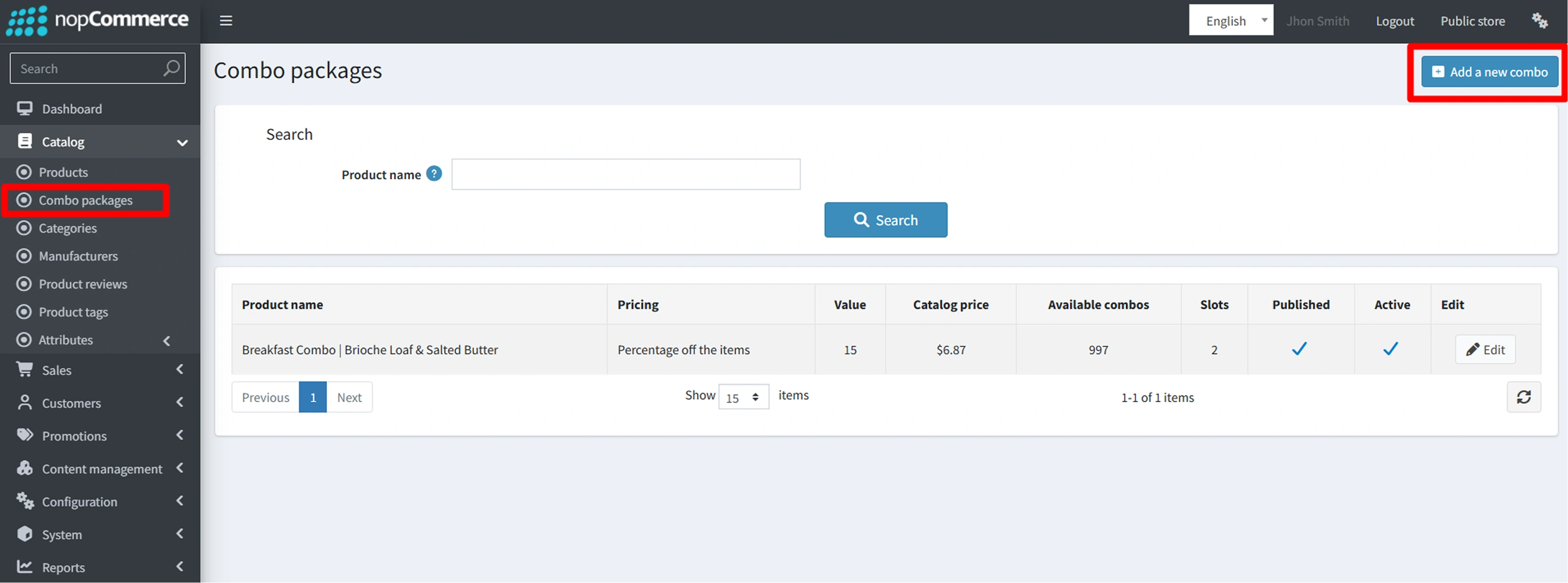
Option 1 (Via Catalog) : Go to Catalog > Combo Packages
-
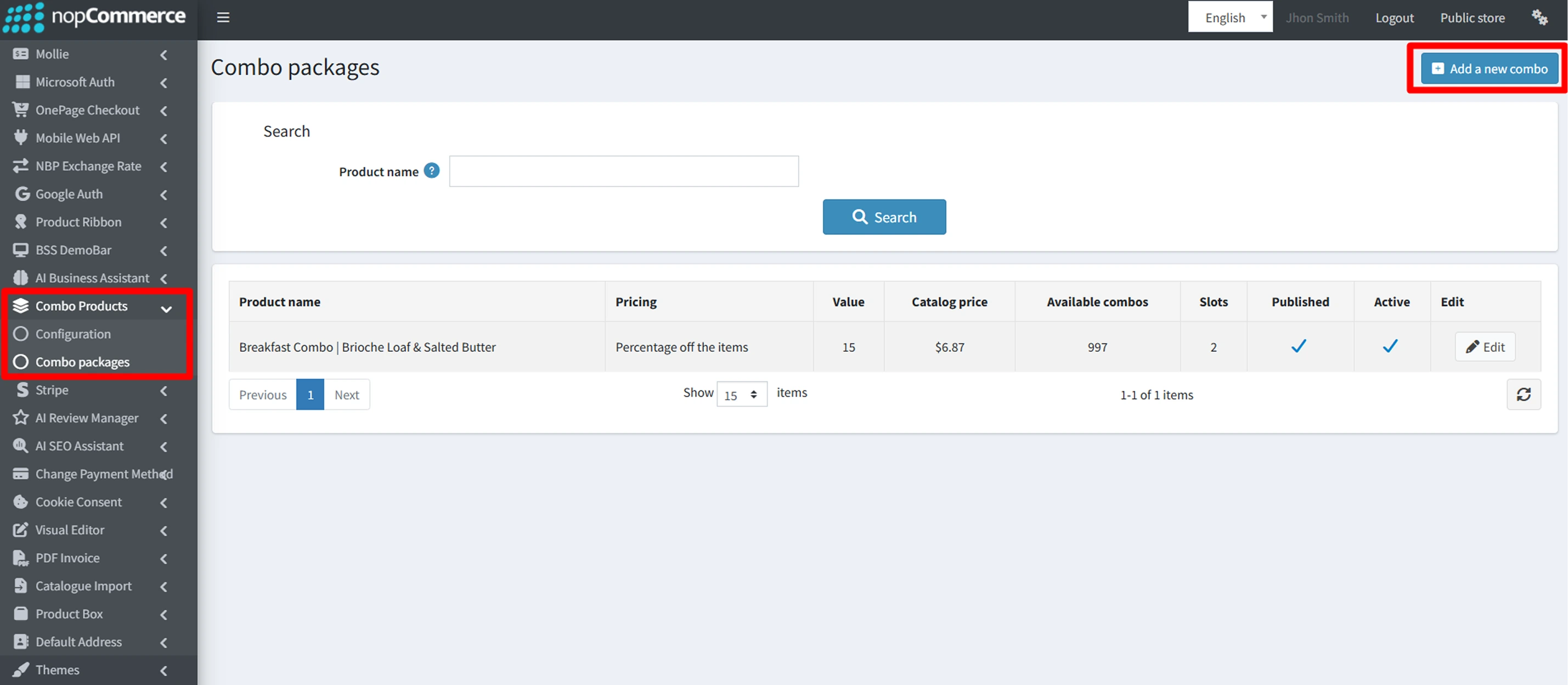
Option 2 (Via Plugins) : Go to Plugins > Combo Products > Combo Packages
Steps to Create:
-
Click the Add a new combo button at the top right.
-
Fill in the required details and configure your combo fields (such as combo name, included products, pricing/discount, and display settings)
-
Click Save (or Save and Continue Edit) to create the combo package.
CONFIGURE THE COMBO DETAILS
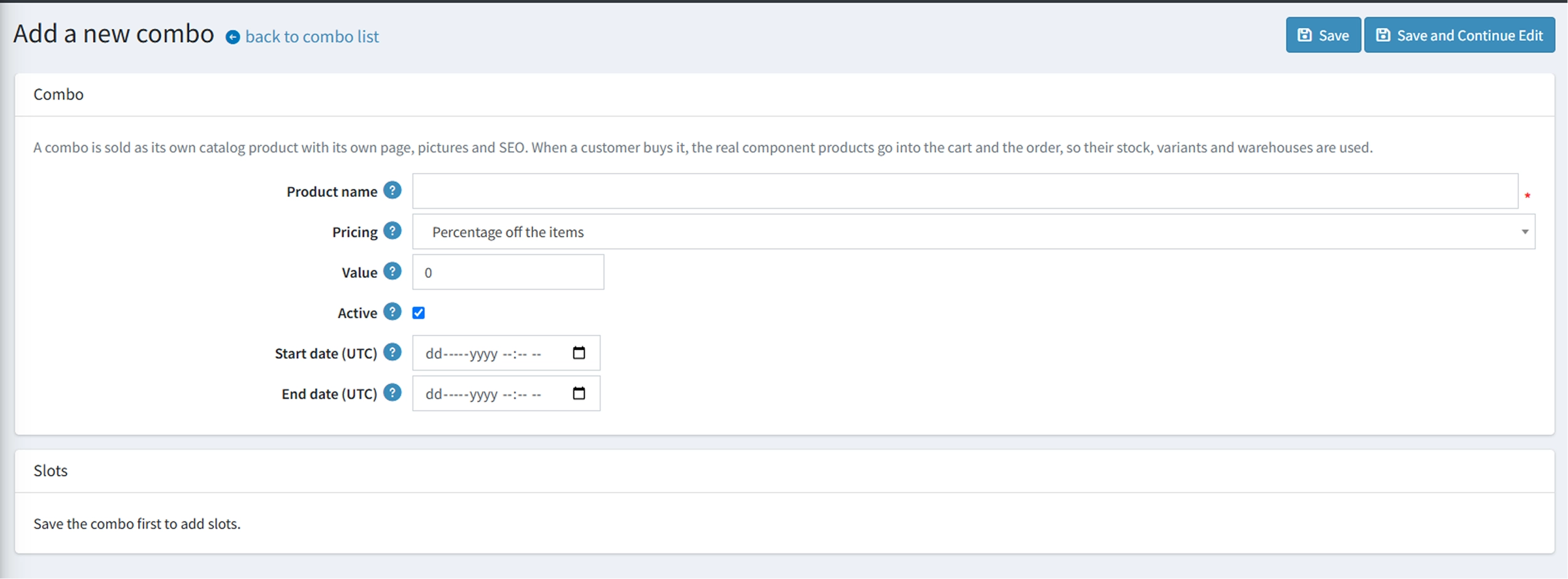
When you click Add a new combo, a new catalog product is created for the bundle (where you can later manage its images, description, SEO, and categories). When a customer purchases the combo, the individual component products are added to the cart and order so their stock, variants, and warehouses stay synced.
-
Product name: Enter the name of the combo product as you want it to appear in your store catalog. (You can edit its pictures, description, SEO, and categories later on its main catalog product page.)
-
Pricing Method: Choose how the combo price is calculated:
-
Fixed combo price: Sets one fixed total price for the entire bundle.
-
Percentage off the items: Applies a percentage discount to the combined price of the bundled items.
-
Amount off the items: Deducts a fixed currency amount from the combined price of the bundled items.
-
-
Value: Enter the exact number for your selected pricing mode (for example, the fixed bundle price, percentage discount, or fixed discount amount).
-
Active: Check this box to make the combo available for purchase. If left unchecked, the combo will appear as out of stock.
-
Optional - Start date (UTC): Set the date and time when the combo becomes available for customers to buy.
-
Optional - End date (UTC): Set the date and time when the combo stops being available for purchase.
-
Slots (Adding Products to the Combo): Click Save and Continue Edit (or Save) before adding products. Once saved, the Slots section will unlock so you can assign the individual products that make up this combo.
ADDING SLOTS AND PRODUCTS TO A COMBO
-
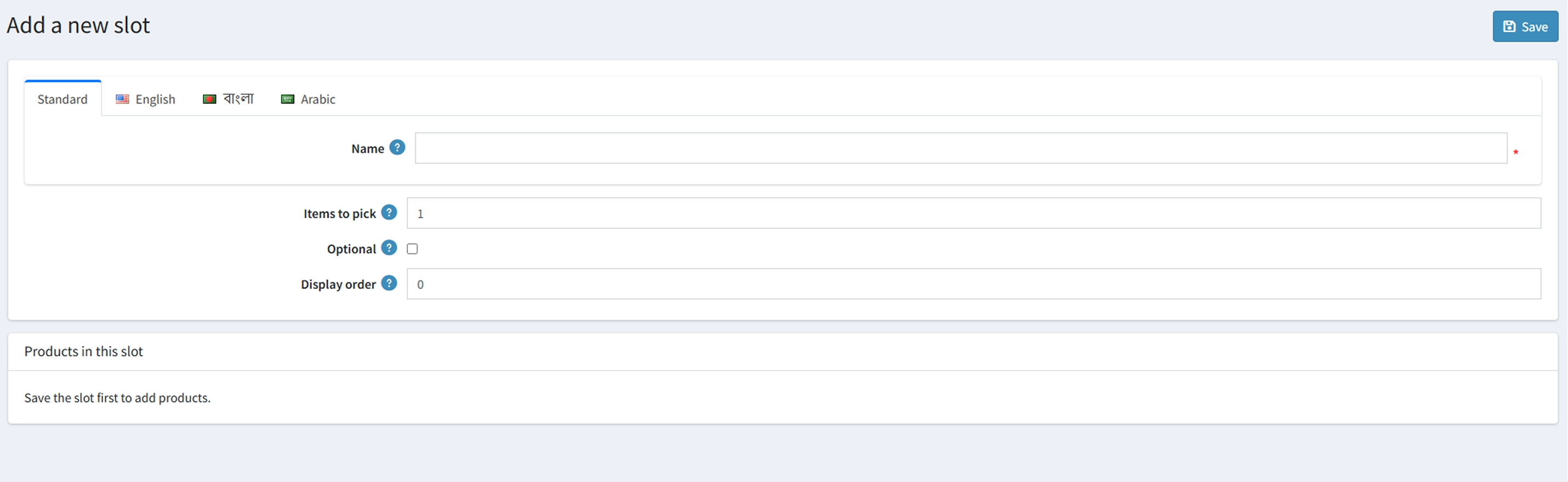
A slot represents one part of your combo bundle such as a fixed item, a choice between multiple items, or an optional add-on customers can skip.
-
Start a slot: In the Slots section, click Add a new slot to open the slot setup window.
-
Configure slot settings: Enter the slot Name (including localized language tabs if needed), set Items to pick (how many items from this slot go into one combo), check Optional if customers can skip it, and set the Display order.
-
Save the slot first: Click Save so the Products in this slot area unlocks for adding items.
-
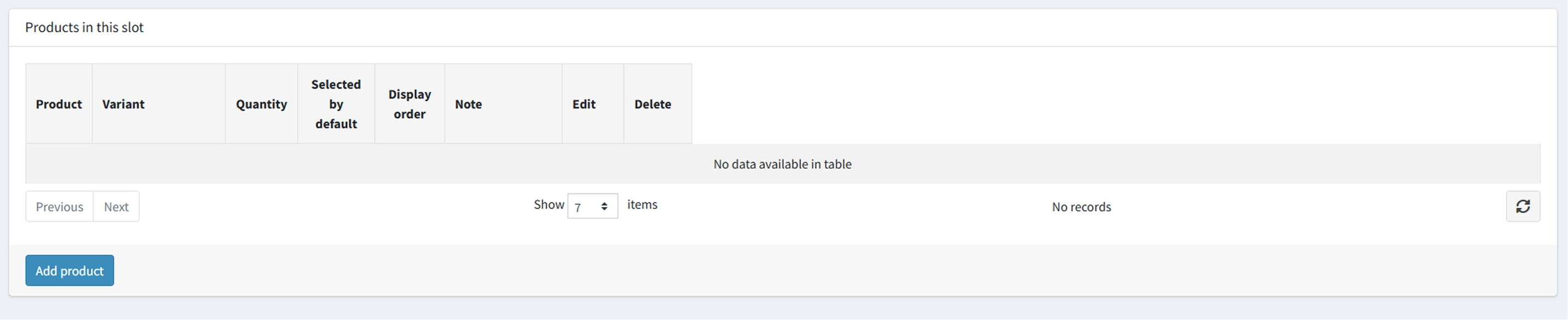
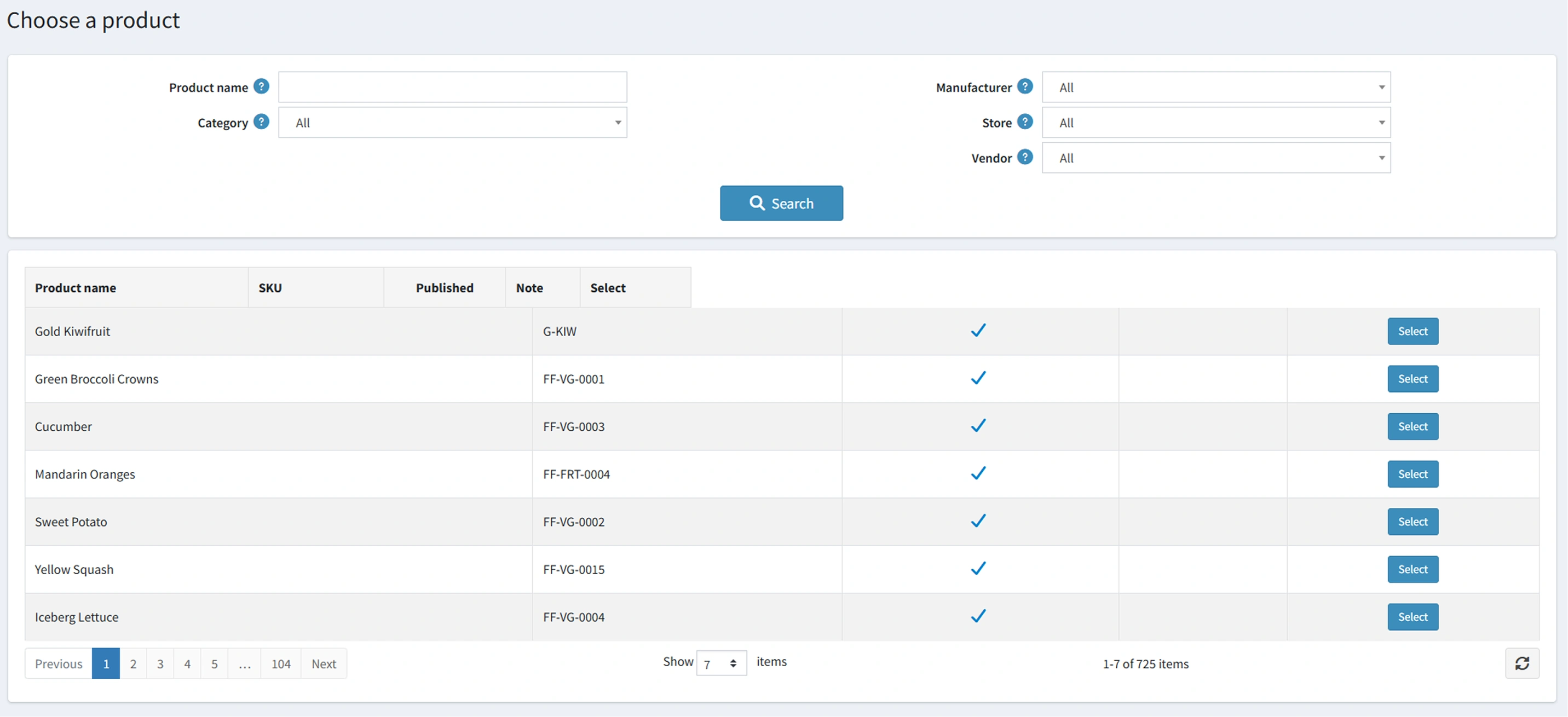
Select products: Click the button to add a product, use the search/filter options in the Choose a product window, and click Select on one or more products to include in the slot.
-
Edit slot product (optional): After adding products to a slot, click Edit on any selected item to set its Quantity (units included in one combo), check Selected by default to pre-select it when the combo page opens, set its Display order inside the slot, and click Save.

-
Finish saving: Click Save or Save and Continue Edit to save the slot and return to the combo edit page where your configured slots now appear.
CALCULATED STOCK AND PRICING OVERVIEW
-
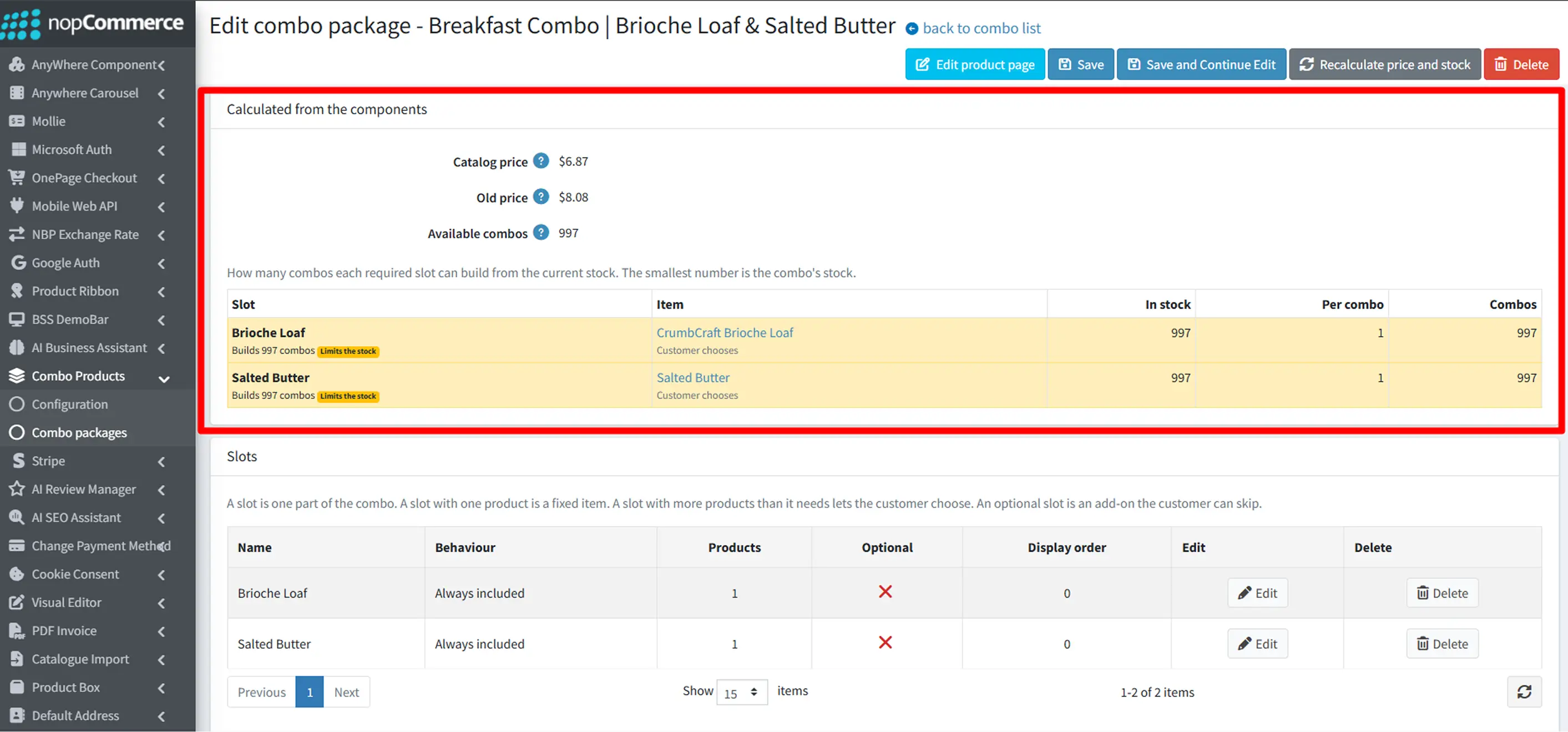
Once slots and products are added, the Calculated from the components section shows how the combo behaves based on its items.
-
Slot stock table: Shows how many combos each required slot can build from current item stock, with the lowest slot count setting the overall combo stock limit.
-
Catalog price: Displays the bundle price shown on product boxes (based on the cheapest valid selection, while the cart uses the customer's actual choice).
-
Old price: Shows the combined price of buying the selected items separately with a strikethrough.
-
Available combos: Shows how many complete combos can currently be made from component stock.
-
Recalculate price and stock & Delete: Use Recalculate price and stock to refresh calculated pricing and stock numbers after changes, and Delete to remove the combo package.
PUBLIC VIEW
FEATURES
-
Sell Product Bundles as Catalog Products: Create combo packages that appear as their own catalog products with dedicated pages, pictures, descriptions, categories, and SEO settings.
-
Flexible Bundle Pricing Modes: Price each combo with a fixed bundle price, a percentage off the included items, or a fixed currency amount off the items.
-
Custom Product Slots & Customer Choices: Organize bundles into fixed slots, multi-product choice slots where customers pick a set number of items, or optional add-on slots they can skip.
-
Per-Item Quantity, Default Selection & Ordering: Control how many units of each product go into a combo, pre-select default options when the page opens, and arrange the display order of both slots and items.
-
Multi-Language Slot Names: Translate slot names into every language configured in your nopCommerce store so international shoppers see localized bundle options.
-
Real Component Stock, Variants & Warehouse Sync: When a customer buys a combo, the actual component products are added to the cart and order so inventory, product variants, and warehouse quantities update accurately.
-
Automatic Combo Stock & Price Calculation: See how many combos can be built from current component stock, check catalog and struck-through old prices, and refresh totals anytime with one click.
-
Savings Badges on Product Boxes: Highlight bundle value on the storefront with a "Combo · Save X%" badge on combo product cards.
-
Clear Cart, Order & Invoice Breakdown: Show the combo name and regular-versus-combo price savings beneath each bundled line in the cart, order details, invoices, and customer emails.
-
Slowest Component Delivery Date Sync: Automatically assign the delivery date and out-of-stock availability window of the slowest required item in the bundle to the combo product.
-
Scheduled Availability & Draft-Safe Publishing: Control when combos can be purchased using active status and UTC start/end dates, and choose whether new combos publish immediately or stay hidden until you finish adding images and descriptions.